Journalist-turned-product manager based in New York City.
I work as Director of Product at RapidSOS, an intelligent safety platform that securely links life-saving data from connected devices, apps and sensors to RapidSOS safety agents, 911 and first responders globally.
I built my career in newsrooms and product teams in the world of media, including at The Washington Post, HuffPost, and the analytics company Chartbeat.
Work
Contempo
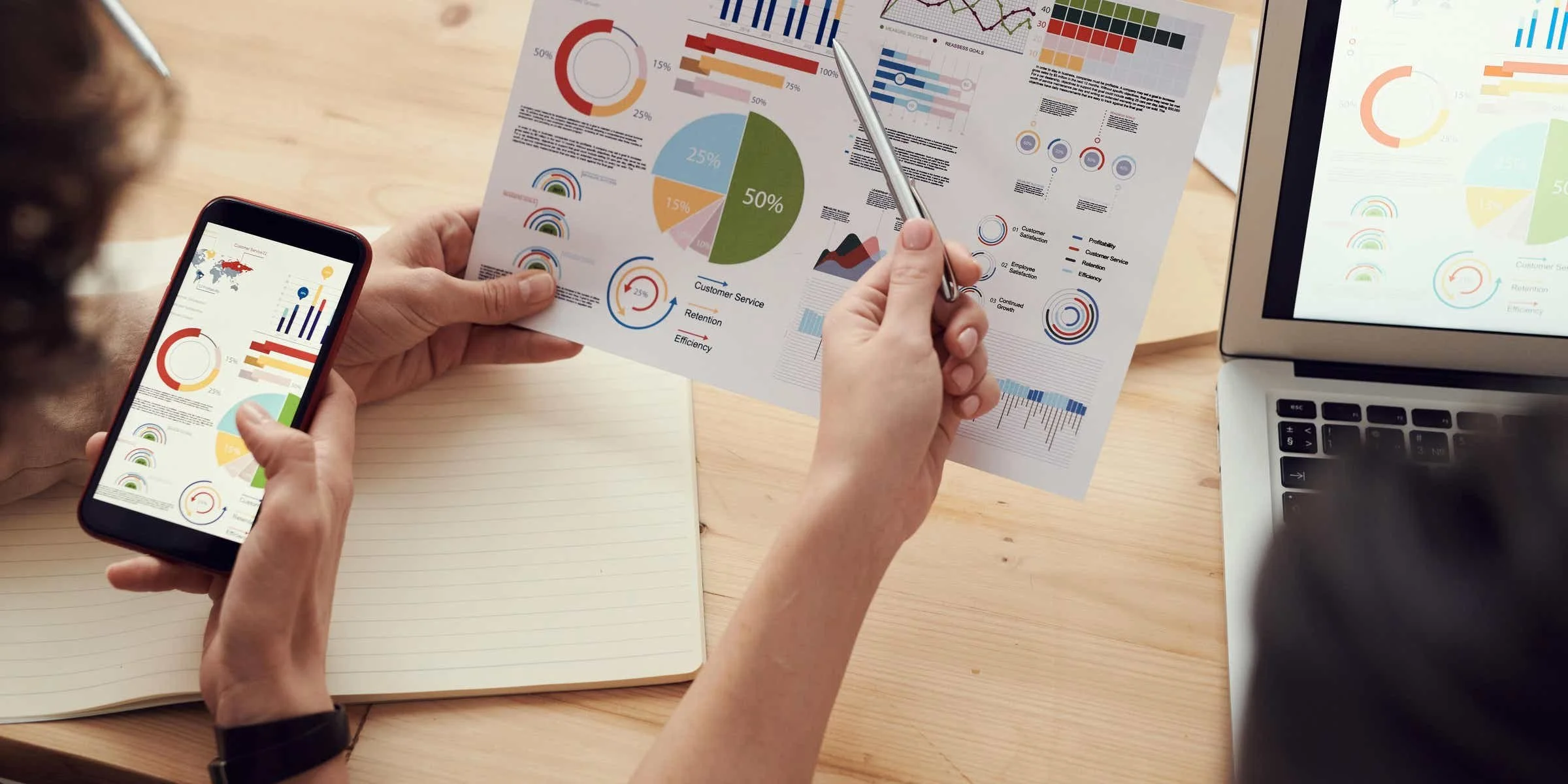
For this initiative at Chartbeat, our product marketing director and I were given the challenge to think through market expansion opportunities: How might we leverage our existing capabilities in new ways and for new market segments?
Among my contributions to the project:
Co-led R&D team to expand outside media vertical, in partnership with our product marketing director
Our team’s product discovery process moved from a potential market need to a vetted business plan with 300+ member waitlist in 3 months
Pilot-tested research tools to scalably recruit and engage with hundreds of users outside our traditional customer groups, including via moderated and unmoderated methods
Leveraged LinkedIn’s Ads functionality to refine our market-sizing analysis and test hypotheses around value propositions.
Ensured alignment at all stages with executive leadership and, as a team, presented plans to company’s board of directors

HuffPost Listen to America
Under a tight 6-week deadline, our team built a new storytelling format for 170+ stories published as part of HuffPost’s Listen to America initiative. This project encompassed a multi-week bus tour that took HuffPost journalists around the country to meet with folks in their communities and cover underreported stories through a collaboration with a local publication in each city the tour visited.
From a product standpoint, our work included the project’s full digital presence on both on-site and distributed platforms. But as we approached the challenge, we wanted to take this opportunity to develop a storytelling template that would be flexible enough to support the premiere pieces of reporting from the project, as well future reuse by the newsroom.
Among the challenges we tackled:
Close coordination with editorial stakeholders producing a variety of forms of storytelling (video/text/photo/graphics)
Support for nuanced branding requirements of 23 co-publishing partners
Satisfying both short-term requirements of the project, as well as long-term reuse of the format for custom content deals

Washington Post for iOS
Featured by the App Store as one of Apple's Best New Apps when it launched, this all-new app was focused on delivering an unencumbered and highly visual reading experience to the Post's growing national and international audience.
Among my contributions to this project:
Worked with designers and developers to refine the overall iPad UX, which was an extension of the experience first launched on Kindle, to make it feel native to iOS devices
Collaborated with product managers and designers to create an new UI for iPhone, based on the same principles behind our iPad UI
Prioritized features and bug fixes for our two-week sprints
Ran weekly internal bug bashes to receive candid feedback
“A thing of beauty ... the app is easy to navigate. The design is exquisite. Even the navigation is easy.”

Washington Post Digital Partner Program
As part of the Post's aggressive campaign for readers nationwide, this program offered partner publications the ability give each of their subscribers a free yearlong digital subscription to the Post.
More than 250 publications signed onto the program.
My contributions to the project included:
Mapped out the project's full scope, especially bringing clarity to non-technical tasks and internal admin needs
Kept subscription redemption process simple, resulting in double the predicted conversion rate
Ran weekly check-ins with key stakeholders to ensure all deliverables were on track
Helped recruit partners by demo-ing the program's tools and redemption UX
Sheperded the program through beta testing, during which we fixed bugs and ironed out the partner on-boarding process
Tested all facets of the program, including consumer-facing sign-on process, partner-facing email marketing tools and internal-facing admins
“The beauty of the program is the simplicity of the program.”

Washington Post Classic iPad App
As part of this project, we overhauled our hybrid iPad app — ditching HTML5 views and rebuilding article pages, galleries and section fronts using native technology.
The challenge posed to our team was how to support the rich, embedded storytelling elements — like tweets, Instagrams, YouTube videos, etc. — that were increasingly interwoven into our stories. Unlike when using HTML5 views to render content, these didn't work out of the box. But our efforts paid off:
The app's crash rate dropped to one-fifteenth of what it was when using hybrid setup.
Article load-time dropped significantly, and user complaints around offline reading bugs vanished.
The newsroom noticed no drop in support for embedded content.
Resume
For full details, visit my LinkedIn profile.
Skills
Communication
Comfortable speaking with technical and non-technical colleagues.
Operationalizing Change
Experience with implementing change management within organizations.
Data Analysis
Strong belief in data-driven decision making.
Clarifying Complex Problems
Accustomed to breaking down a path to get to the Big Idea.
Problem Solving
Regularly dig into technical discussions to find solutions.
Get in touch.
Want to chat? I'm at any of the following: